
Preview of Final Image

Create a document of a reasonable large size with black background. Using Type tool, with size 280pt and Trajan Pro font, type a number "1". Otherwise you may also use other fonts of your preference.

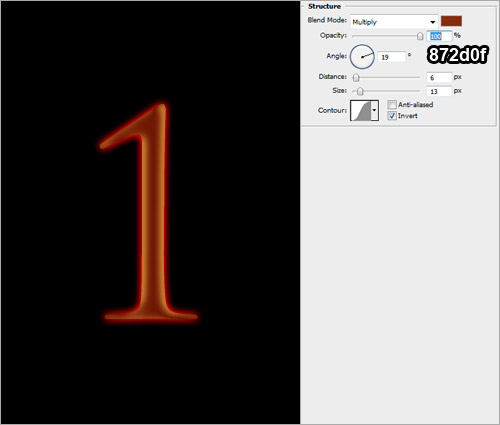
Right-click on the type and choose Blending Options. Check on Outer Glow and key in the following settings

Check on Color Overlay and key in the following settings.





Go back to Layers tab and use the Move Tool to drag any part of the selected area into the document with the "1" you done earlier. Place the fire above the type.
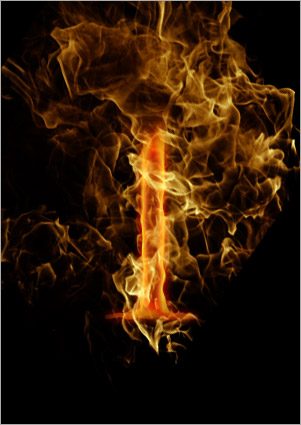
Using the Eraser tool with 15px, erase all the excessive fire, leaving only those parts that is waving around the type.
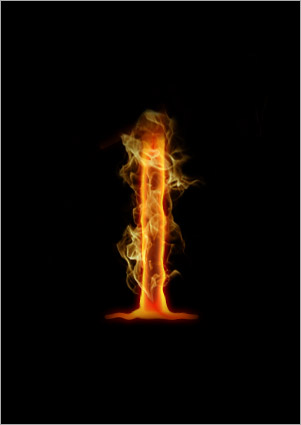
Duplicate the fire layer. Set the Opacity of the original fire to 30%. Set the Blend Mode of duplicated fire to Overlay.
Repeat the processes to cover the type with more flames. And there you got your first flaming type!

Create more flaming letters according to your own preferences.


