Saturday, June 12, 2010

Create a Stunning Text on Wild Fire Effect

Create a Stunning Text on Wild Fire Effect

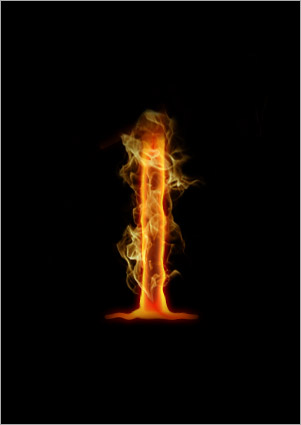
Preview of Final Image


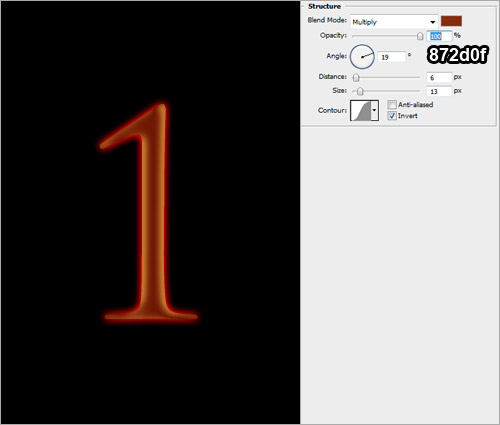
Create a document of a reasonable large size with black background. Using Type tool, with size 280pt and Trajan Pro font, type a number "1". Otherwise you may also use other fonts of your preference.


Right-click on the type and choose Blending Options. Check on Outer Glow and key in the following settings


Check on Color Overlay and key in the following settings.
   Check on Satin and key in the following setting
      Check on Inner Glow and key in the following settings.
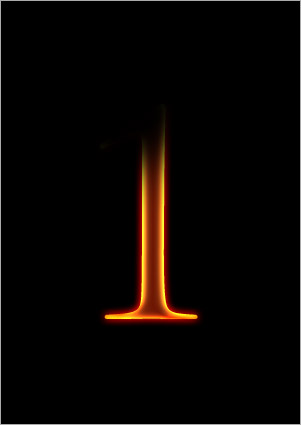
      Right-click on your type layer again and choose Rasterize. Using the Eraser tool with size 200px, fade off the top portion of the type.
        Go to Filter > Liquify. Select the Forward Warp Tool and key in the following settings. Using the Forward Warp tool, create some waves on the border of the type.
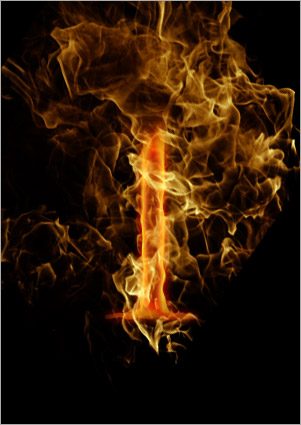
          Download the Fire image from Shaedsofgrey. Go to Channels tab and select the Green layer. Ctrl + left click on the Green layer to load selection of the highlight areas.
                     Go back to Layers tab and use the Move Tool to drag any part of the selected area into the document with the "1" you done earlier. Place the fire above the type.  


           Using the Eraser tool with 15px, erase all the excessive fire, leaving only those parts that is waving around the type.


            Duplicate the fire layer. Set the Opacity of the original fire to 30%. Set the Blend Mode of duplicated fire to Overlay.  


         Repeat the processes to cover the type with more flames. And there you got your first flaming type!


           Create more flaming letters according to your own preferences.


          Glossy Emblem Text Effects with Photoshop

          Glossy Emblem Text Effects with Photoshop

          To create the following nice looking Glossy Emblem Text Effect with Adobe Photoshop in 4 simple steps.


          With just one text layer and a few layer styles you can have yourself a deliciously glossy emblem text effect in no time. Since the entire effect is done on a vector text layer, you’ll be free to change the font face or letters to suit your needs and still retain all of its styling. As a final touch, we’ll add a simple shadow to give it some perspective and realism.

          Step 1

          Fire up Photoshop and set your canvas to 800×600. We’ll be using a dark perforated material for the background. This can easily be made by cutting out a pattern of circles from your background and applying a subtle bevel. Feel free to grab the background image or use another texture if you wish.


          Step 2

          Next, lay out your type. I’m using black Trajan, 425px in size to cover most of our area. A couple of letters will do for now.


          Step 3

          Now lets slap on a barrage of layer effects. Start off by selecting your text and going to Layer > Layer Style > Drop Shadow and enter in the settings below. Then continue down the list while paying close attention to each setting and blending mode. Also take note of the different contour maps being used. You can find a larger array of contour maps.


          A closer look at the color ramp for your Gradient Overlay:


          And here’s what your stroke’s gradient should look like:


          You should now have a beautifully reflective emblem with metal trim. But lets add that last shadow for a little depth.

          Step 4

          Ctrl  + click on your text layer’s thumbnail (the white box with the capital ‘T’) in the layer’s palette to select it. Now create a new layer underneath your styled text by pressing Ctrl + Shift + N. Fill this selection with black and Ctrl  + D to deselect. Apply a Motion Blur filter with a -85 degree angle and 39px of distance. Finally, nudge this layer down a tad so most of the shadow falls below your type.


          Friday, April 30, 2010

          A LOVE Fact-
          One can cross the ocean witout wetting his legs.
          But, one cannot cross his LOVE without wetting his eyes..
          Its True.. Feel it..
          2 great days in human life

          'The day we were born
          &
          The day we prove why we wer born'

          Believe in urself & prove urself!
          Luck decides whom u meet in life,ur heart decides whom u want in life.Bt its destiny that decides who gets to stay in ur life
          WELLThats life

          HTML Test Bed

          Preview Select